

Setting Up Your Email - Part 2:
Receiving POP Mail
POP Details

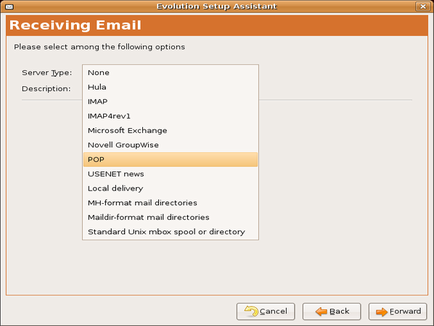
So,
with this
assumption about your email server, select "POP" from the list of
e-mail server types. The window will then change to look like this:
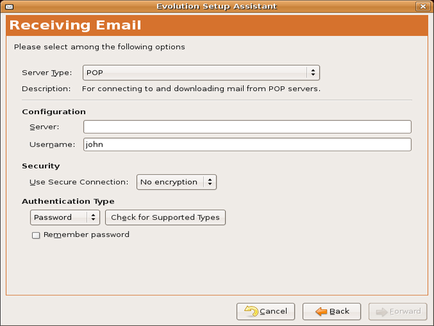
The server is the POP server given to you by your mail service
provider. Often, system and network administrators will give the mail
server a clear name such as "pop.server.host.com" or
"imap.server.host.com". If this is true for your mail provider, you
can tell the type of server from the first part of the server's
address.
If you do not have a POP server, you must choose a different server
type. Click on "Back" and do so.
If you do not know the type of mail server your network is using and
cannot tell the type of server from the address, you need to contact
your system administrator to find out.
The username is imported from the name you gave Evolution on the
preceding page. Here it is lowercase because all mail account logins
are lowercase by default. If you use a different login to retrieve
your email, edit this field to suit your needs.
Like most email programs, Evolution retrieves mail without encryption
by default. You must tell it that require either TLS or SSL
encryption. If your email service provider has not told you to use
encryption, do not try either form of encryption -- it will only cause
a fault in mail retrieval.
Finally, you can tell Evolution to use a particular type of
authentication. The vast majority of the time, you will need to use
only a password with your username. Other authentication types are
available, however. If you do not know which one to use, simply use
the default: "Password".
If you are confident that the default "Password" will not work and are
unsure of what kind of authentication is supported by the server,
Evolution can check for you. Simply click on "Check for Supported
Types". It will then poll the server to find out what forms of
authentication are available.
If you want Evolution to remember the password for your email account
and not to ask you for it everytime it check for new messages, tick
the box next to "Remember password". Evolution will ask you for the
password the first time you check for messages and will then remember
it.
Click "Forward" to enter the options for receiving email.
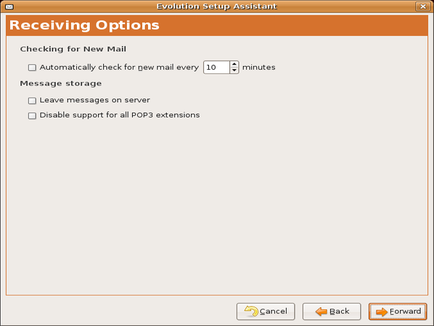
Options for Receiving Email by POP

The first option on this window pertains to how long Evolution should
wait between mail checks. If this box is not ticked, Evolution will
not automatically check for new mail.
Under "Message storage", you have the option to leave the messages on
the server. If you tick this box, every email client that accesses
your account will download all new messages received since that mail
client accessed the mailbox, not since the mailbox was last accessed.
This is great for keeping your mail on more than one computer. If you
go a long time between sessions on one of the email programs, however,
the mail retrieval process could be quite long the next time you
download your messages.
Finally, "Disable support for all POP3 extensions" is helpful when
accessing older or misconfigured servers. POP3 extensions are add-ons
to the Post Office Protocol which enable various levels of greater
functionality. Some servers support them; some do not. If you have
trouble downloading your email, toggle between selecting and
deselecting this box.
When you are done with the email retrieval options, click "Forward"
to tell
Evolution how to send your email.
A Brief History of Linux The Linux kernel is the basic programming foundation for the entire Ubuntu operating system. Here is how it started and why it is called GNU/Linux.
|
Ubuntu's African Roots Ubuntu comes from an African word that suggests humanity and community.
|
Get Ubuntu Linux: Download, Request, or Order Ubuntu Ubuntu can be downloaded or ordered and is available in a couple of versions: 6.06 (Dapper Drake) and 7.04 (Feisty Fawn). Which you use depends on the software you need. This page shows you from where you can download, request, or buy Ubuntu.
|
Ubuntu vs Windows Vista Ubuntu had many Windows Vista features almost a year before Microsoft released it. Here is how Ubuntu compares to Windows Vista.
|
Windows Vista vs Mac OS X Windows Vista looks curiously like Mac OS X. NY Times' David Pogue says there is no connection.
|
How to Install Ubuntu Linux (6.06 LTS) Ubuntu is the easiest Linux version to install. Here is a guide to installing Ubuntu Linux painlessly.
|
Resizing a Windows Installation Resizing a Windows installation is easy with the Ubuntu installer. Installing Ubuntu in parallel to a Windows installation is called 'dual booting' and is a good idea. Here is how to do it.
|
A History of Ubuntu Ubuntu is an African word meaning 'humanity to others.'
|
Adding Ubuntu Software and Other Linux Software to Ubuntu Adding Ubuntu software, non-Ubuntu Linux software, or even proprietary software to your new installation is easy with Synaptic. Here's how.
|
Adding Ubuntu Repositories Adding Ubuntu repositories to download more Linux software is not very complicated. It is a simple matter of telling Ubuntu where to find more software.
|
Additional Ubuntu Repositories Ubuntu software is available in more repositories than the default Ubuntu installation gives you. Here is a listing of more Ubuntu repositories for your software needs.
|
Ubuntu Root Access Ubuntu root access is needed for all system-wide tasks. Here is how to gain root access in Ubuntu.
|
How to Install Ubuntu Linux 7.04 (Feisty Fawn) Ubuntu Feisty was released in April 2007. It is the easiest Ubuntu to install yet. Here is how the installation of Ubuntu Feisty is different from 6.06 LTS.
|
Booting Windows Instead of Ubuntu by Default Grub boots Ubuntu by default. But if you want to make Windows your default operating system without losing Ubuntu, all you need do is change a number in Grub's configuration file. Here is how.
|
Setting Grub Timeout When Dual Booting Ubuntu Grub's menu is hidden by default. Making it visible at startup is a matter of editing grub's configuration file. Here is how.
|
Make Grub's Menu Visible At Startup Grub's menu is hidden by default. Making it visible at startup is a matter of editing grub's configuration file. Here is how.
|
Parts of the Ubuntu Desktop: Top Left Ubuntu uses GNOME as a default desktop. Here are the top left parts of the Ubuntu desktop and what each does.
|
Parts of the Ubuntu Desktop: Top Right Ubuntu uses GNOME as a default desktop. Here are the top right parts of the Ubuntu desktop and what each does.
|
Parts of the Ubuntu Desktop: Bottom Components Ubuntu uses GNOME as a default desktop. Here are the bottom parts of the Ubuntu desktop and what each does.
|
A Primer for Installing Ubuntu Installing Ubuntu should be as easy as possible, and the best guides for this are provided here at Easy Ubuntu Linux. But all the online resources in the world do not help you offline. For this reason, we are providing this PDF primer to help you install Ubuntu.
|
Setup Your E-mail On Ubuntu: Part 1 Sending e-mail under Linux is easy. Here is how to setup your email identity under Ubuntu Linux.
|
Receiving E-mail Sending e-mail under Linux is easy. Here is how to receive email under Ubuntu Linux.
|
Sending E-mail On Ubuntu Sending e-mail under Linux is simple. Here is how to setup Evolution to send email under Ubuntu Linux.
|
Office Suites for Ubuntu Choosing an office suite for your Ubuntu installation is like choosing the first among equals. Here is a comparison of the best office suites available for Ubuntu Linux.
|
Upgrading Ubuntu Ubuntu upgrades are easy to affect. As usual with Ubuntu, you get to choose how to upgrade.
|
Install Ubuntu Upgrades By Updating Your Installation Ubuntu Upgrades are a choice of two straightforward processes. Here is how to upgrade and update all of your programs at once.
|
Affect an Ubuntu Upgrade With An Install CD Ubuntu Upgrades are as easy as the installation. Here is how to upgrade and save your data.
|
Receiving Email via IMAP Sending e-mail under Linux is easy. Here is how to receive email under Ubuntu Linux.
|
Image Handling With Ubuntu Ubuntu's image handling surpasses those of other operating systems. Whether you just need to look at your pictures or create first-rate graphics, Ubuntu offers a program to meet your needs.
|
Photo Previewing and Slideshows With GQView GQView is an additional photo previewing program for Ubuntu. Here is a brief tutorial on how to preview and edit photos with GQView on Ubuntu.
|
Install Ubuntu Install Ubuntu with minimal fuss. Some choices in the installation process are better than others, and this section will help you to install Ubuntu with ease.
|
Configure Ubuntu The default Ubuntu configuration is good for most users. However, you will inevitably want to configure Ubuntu to suit your tastes better.
|
How to Use Ubuntu Once Ubuntu is setup, you may still wonder about how to use Ubuntu. This section will show you how to setup and use software such as email, office suites, and photo editing software.
|
Apache - Ubuntu - Apache Modules on Ubuntu - Part 1 Ubuntu allows webhosting on your computer. Here is how to configure Apache on Ubuntu.
|
Apache - Ubuntu - Apache Modules on Ubuntu - Part 2 Ubuntu lets you run many kinds of servers on your computer. Here is how to configure Apache on Ubuntu.
|
Easy Ubuntu
Linux and the Easy Ubuntu Linux logo ©2006-2007, Integrity
Enterprises.
Ubuntu ©Canonical,
Ltd. All other trademarks and logos are the reserved copyright
possessions of their respective owners.
Unless otherwise stated, all material contained on this website is
copyrighted to Easy Ubuntu Linux.com. All rights are reserved. All
content is provided AS IS without any warranty of any kind for any
purpose.
If you have a question or comment about Ubuntu or this site,
please send email to 'webmaster (at) easy-ubuntu-linux.com' (remove
single quotes and replace "@" for " (at) ").